
vCloud Director PAY-AS-GO vCPU default setting – Gotcha
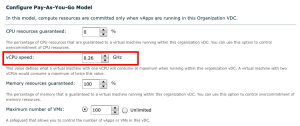
During Partner Exchange I had quite a few discussions with people about the default vCPU setting when creating an Org vDC with a Pay-As-You-Go allocation model. Now this is nothing new however this is still causing quite a few performance issues out in the field. When creating a new Org vDC through the wizard, after selecting the allocation model Pay-As-You-Go, you are shown the configure window. This window allows configure the compute requirements for this Org vDC. This is where the gotcha comes in. The default setting vCPU is configured at 0.26 Ghz. I will repeat this as I know I have missed it in the past. The default setting for vCPU is 0.26GHz. You can see in the screenshot below the default setting. So how does this actually relate to the objects in vCenter? By leaving this set to the default, this will configure every VM you create with a […]
Compare two Word documents – MAC
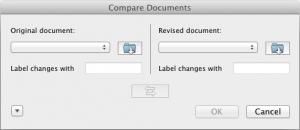
Today I have been working on a document using dropbox. I now have a conflicted copy saved by my colleague and I wanted to know how to compare the differences. Now the long way is to do a stare and compare, however I knew that the Windows version of Word offered a compare facility. I started looking at the options in Mac Word. The following steps are how to compare two documents using Microsoft Word 2010 for Mac Open both the documents you want to compare Select Tools Goto Track Changes Select Compare Documents… You are prompted with a window where you can select the two documents to compare Click Ok The documents will be compared and merged into a new document. Really easy.
Screen flicker in VMware Fusion 4.x
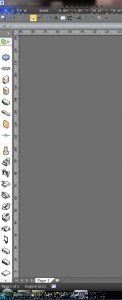
Lately I have been having issues with the screen in my VM running under Fusion flickering. This is particularly annoying when working in Visio and trying to draw up a diagram. It is not good for the eyes 🙂 The below screenshot shows the issue I have been experiencing: To stop the flicker enter the VM settings and turn off 3D Acceleration under the Display configuration. You will need to Power off the VM before you can make this change. Once the VM is powered on the screen will no longer flicker, therefore saving your eyesight 🙂
vCloud DR Solution – Partner opinions
Here is a video with some partners discussing the vCloud DR solution that was released last week.